
+2712 88 00 258
KB20210304/01: Sage 200 Evolution Tip & Trick – How do you clear Agent Login History


The following steps will explain how to clear the Agent Login History on the Sage 200 Evolution login screen.
Step 1 – Close Sage 200 Evolution on the local PC
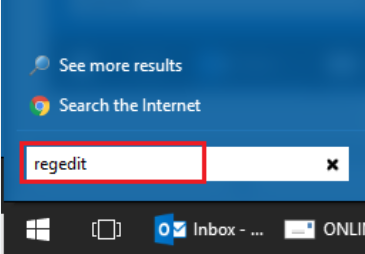
Step 2 – Go to Windows | Run
Step 3 – Type in “regedit” and press the Enter key on the keyboard
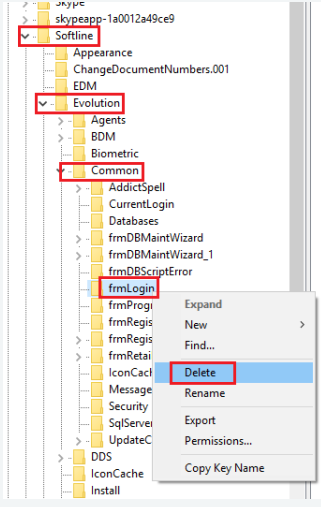
Step 4 – Within the opened Registry Editor, expand HKEY_CURRENT USER | Software | Softline | Evolution | Common
Step 5 – Navigate to and delete the “frmLogin” registry key as below
Step 6 – When done, close the Registry Editor and re-open Sage 200 Evolution. The Agent Login History should now be removed.
For more information on Sage 200 Evolution contact us on info@sysfinpro.com or by phone on +27 12 880 0258.